- Security
- A
In Search of Secrets. iOS Pentest. Part Three
This time I will teach you how to find what developers hide in iOS applications. We might find passwords, personal data, or even backend API keys, which will allow us to continue the attack at the next level.
This time I will teach you how to find what developers forget hide in iOS applications. We might find passwords, personal data, or even backend API keys, which will allow us to continue the attack at the next level.
For this, we will need knowledge from the previous article. As a reminder, we learned how to gain root access to more or less recent iOS devices, as well as use an adb equivalent via ssh and iproxy. This gave us full access to iOS system resources and allowed us not only to install geek tweaks but also to manipulate memory and processes.
To stay within the law, we will use the test application DVIA-v2 to train ourselves in these skills.
After all, those who know how to attack can also protect themselves.
Disclaimer: the information presented in this article is intended solely for educational purposes and for use within legal penetration testing.
Setting up the environment: Installing DVIA
Damn Vulnerable iOS App v2 (Russian: Чертовски уязвимое приложение) is an iOS application written in Swift, which has a bunch of intentionally built-in vulnerabilities for learning pentesting on this platform.
Disclaimer: do not even think about installing DVIA on a device you use for personal purposes (banking, contacts, etc.). Your data’s safety in such a case is not guaranteed!
However, you cannot just download it from the Apple Store due to its extreme vulnerability. Therefore, the installation is done manually.
Download locally the IPA of DVIA release
Install using Sideloadly (automatically signs and does not require a paid developer account). The installation process is quite simple, but in case of issues - here’s a tutorial.
Grant permissions in settings: After successfully installing the app, a prompt from Apple will appear at launch stating that the developer (your gray account) is untrusted. To bypass this, go to: Settings - General - V** and Device Management - [ your_user] at email - Trust [...] - Confirm.
The application will open, and you can go to the section: Local Data Storage.
Disclaimer: BUT there is one BUT! You will need to enter AppleID credentials in Sideloadly! For this, you need to create a gray AppleID that you will not use anywhere else except for testing. Although developers claim that this data is used only to generate a fake signature and then erased, it is better not to provide your personal AppleID.
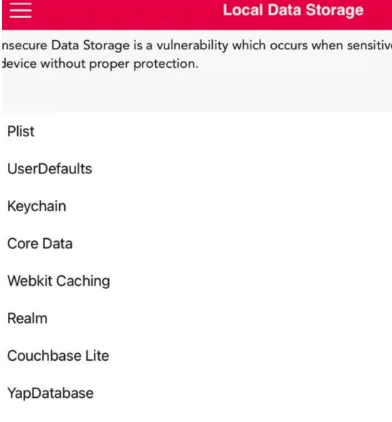
Theory: Why is local storage a risk?
Once you have installed and launched the application, it’s time to start the first task: finding a vulnerability in local data storage (Local Data Storage).
The thing is, normally the application should communicate with the back-end API to send and receive requests. Also, confidential client data may be stored on the device, which, if poorly protected, can be read by third-party apps or attackers with local access to the device (for example, after theft).
Ideally, access to such secrets should be restricted, and the data protected by encryption. However, this is often ignored by developers and leads to unfortunate consequences.
Recon: Finding paths to the application
And now we already have root access to the device. First, we need to connect via ssh and figure out which directory the application is in.
iproxy 2222 22 &
ssh -p 2222 root@localhost
For convenience, turn off all applications, leaving only the one we need active, and filter the processes:
root# ps aux  | grep -i dvia
/var/containers/Bundle/Application/097D[...]53/DVIA-v2.app/DVIA-v2
This directory contains the application binary, libraries, and Info.plist.
If you search further, you can also find a directory that contains sandboxes with data from all installed applications:
/var/mobile/Containers/Data/ApplicationAs a result, we have two sandboxes: one with binaries and configs, and the other with data. Let's examine them. To do this, I recommend copying them locally via scp so as not to accidentally modify them on the device:
scp -r -P 2222 root@localhost:/var/containers/Bundle/Application/097D44A4-5503-409F-81E6-E0ACE6EE3553  .
scp -r -P 2222 root@localhost:/var/mobile/Containers/Data/Application/DD3F1424-3831-4FBA-8C8B-D9D1C3F3AA58  .
Note that the identification numbers of the directories with the binary and the data are different, but they are used by the same application. So be careful.
Disclaimer: this method is not suitable for dumping the application binary, as it will be encrypted by Apple. We will explain how to download a readable binary in the next article!
First stage: Analyzing Info.plist
Let's start searching for leaks with the previously found Info.plist file, which is something like the equivalent of a manifest in Android. Therefore, you should always begin getting familiar with an application from this file.
After downloading the directories from the iOS device to your local machine, run the following command on macOS to view *.plist:
open ./097D44A4-5503-409F-81E6-E0ACE6EE3553/DVIA-v2.app/Info.plistYou will see Xcode magically open with the application data and its settings.
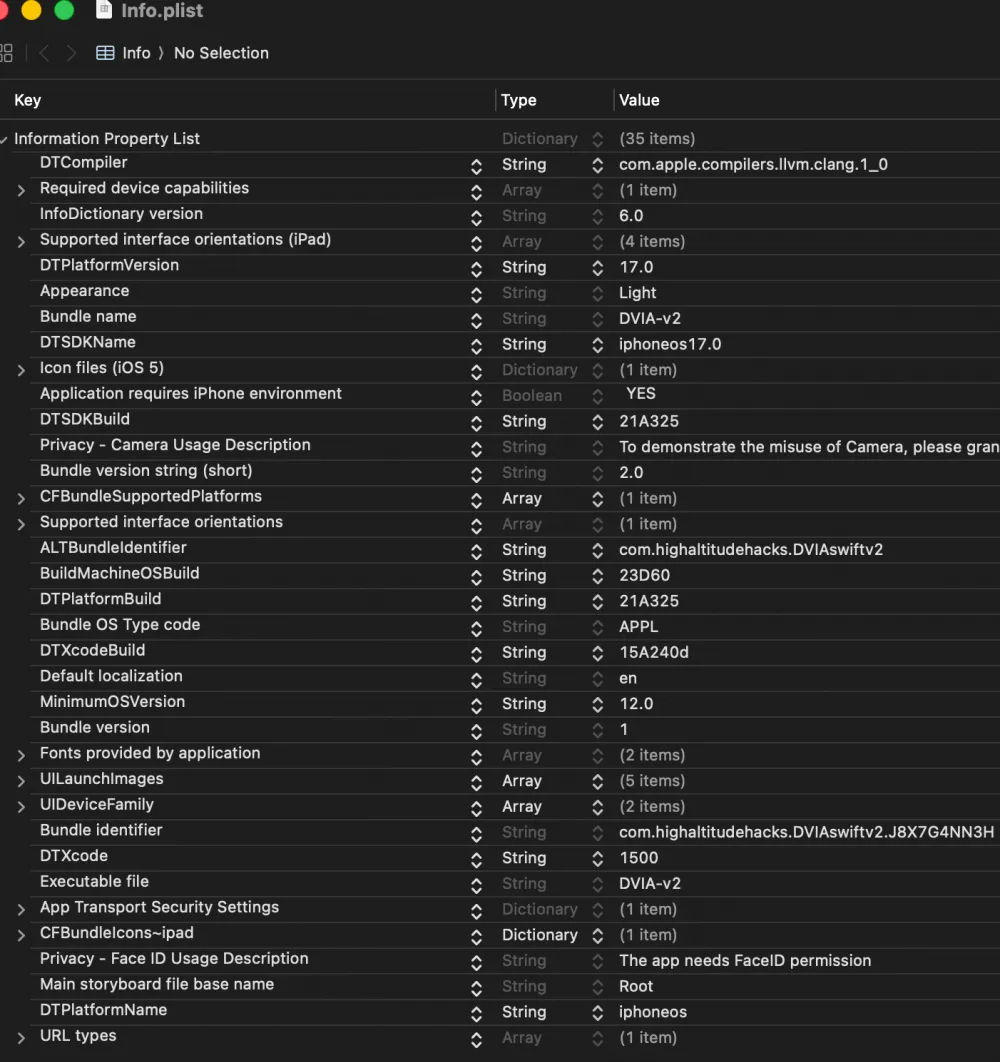
We don't see anything suspicious here, so we look for other *.plist files (there are many): find . | grep plist
Searching for secrets in UserDefaults and Grep
Continue searching by keywords:
grep -ri 'key' . | grep user
./DD3F1424-3831-4FBA-8C8B-D9D1C3F3AA58/Documents/userInfo.plist:	password
./DD3F1424-3831-4FBA-8C8B-D9D1C3F3AA58/Documents/userInfo.plist:	username
And we see something interesting hidden in userInfo.plist. If you open it:
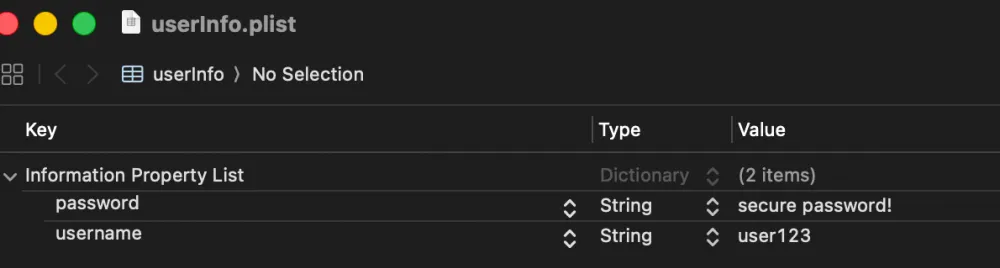
This is unsafe data storage because the credentials are not encrypted.
Also, in this simulator, secrets are hidden after calling UserDefaults in another .plist file:
cat Library/Preferences/com.highaltitudehacks.DVIAswiftv2.J8X7G4NN3H.plist
bplist00?YDemoValueYtoto12345
Storing API keys and any other confidential things this way is not safe!
Therefore, using a single command - grep - you can find a lot of interesting things. The lazy option: check out a utility for automatic scanning: MobSF.
Summary and protection recommendations
Finding leaks is very easy if you have root access. However, note that besides root, an attacker can use a backup via iTunes or iMazing to dump the app sandbox. Don’t be naive — don’t rely on sandbox (iOS Sandbox) protection!
The main rule — don’t store anything secret on the device if it can be avoided. And if needed, use protection so that even with root it’s hard to access. Here are the top recommendations:
Use Keychain for all secrets;
use
kSecAttrAccessibleWhenUnlockedThisDeviceOnl;Enable
NSFileProtectionComplete;For databases (SQLite, Realm) add explicit encryption;
Integrate MobSF or OWASP MSTG into your CI/CD for scanning leaks of secrets and keys.
Stay safe! And look forward to the next article.
Disclaimer: no chatbot was harmed in the making of this article!





Write comment