
- Security
- A
VLESS on a router with OpenWRT
A brief guide to installing a VPN on a router running OpenWRT using the Passwall package
ATTENTION! The authors are not responsible for the operability, security, and stability of the software presented in the instructions. All actions (flashing / router configuration) are performed by users with this fact in mind
Usage scenarios:
Ensuring the privacy of the internet connection for all or some devices in the LAN network
Bypassing regional blocks on all or some devices in the LAN network
Implementing dual VPN:
- VPN provider #1 (on the router): sees the client IP but does not see the IP of the visited resources
- VPN provider #2 (on client devices): sees the IP of the visited resources but does not see the client IP
Requirements:
Router with OpenWRT
Options:
Purchase a router with pre-installed OpenWRT (for example, from marketplaces)
Install OpenWRT on a compatible router. The list of supported devices with installation instructions: https://toh.openwrt.org
Personal VPN or subscription to a commercial VPN using the VLESS protocol
1. Reset to Factory Settings
Resetting the router to default settings will remove incompatible software with Passwall, if present (other VPN clients, traffic analysis programs, DoH and DoT configurations, etc.) and temporary files:
Connect to the router's LAN port via cable from a computer (after the reset, the WiFi access point may be turned off), enter the local IP of the router (usually 192.168.0.1, 192.168.1.1) in the browser, and then enter the router's password (if available)

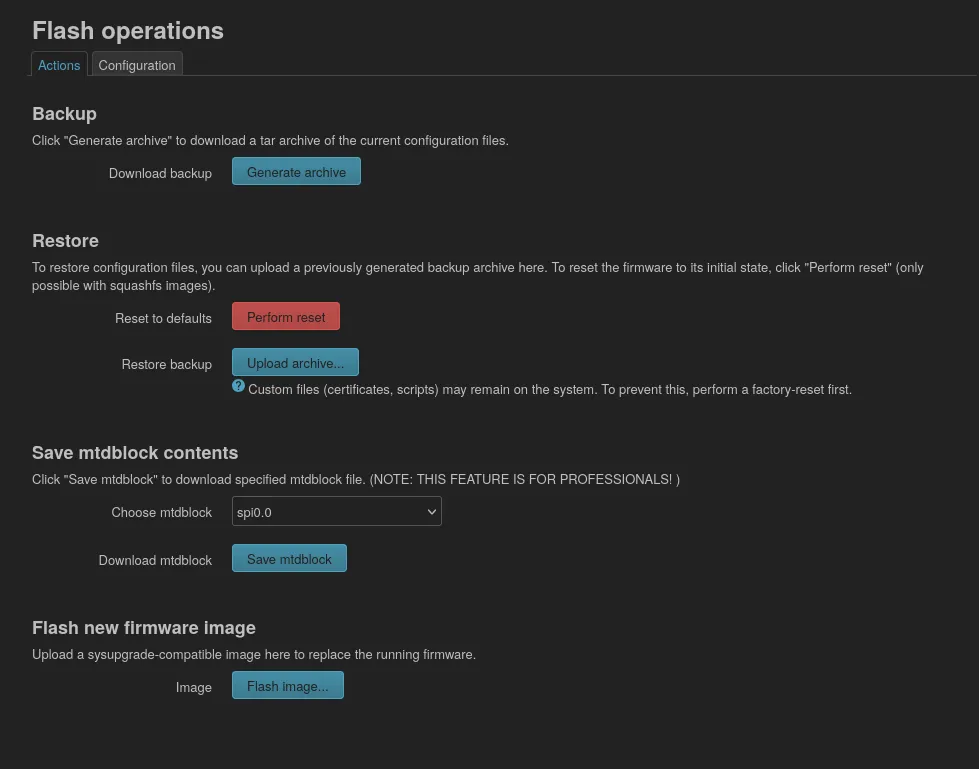
Click the Perform reset button in System - Backup/Flash Firmware and confirm the reset. The router will reboot and reset to its initial state within a couple of minutes
2. Internet Access Setup
If internet access is not available after the reset, configure the WAN interface according to the instructions from your Internet service provider:
Enter the IP, default gateway, and DNS servers provided by the provider or specified in the service agreement in the WAN interface settings (Network - Interfaces - Interfaces - WAN). Restart the router.
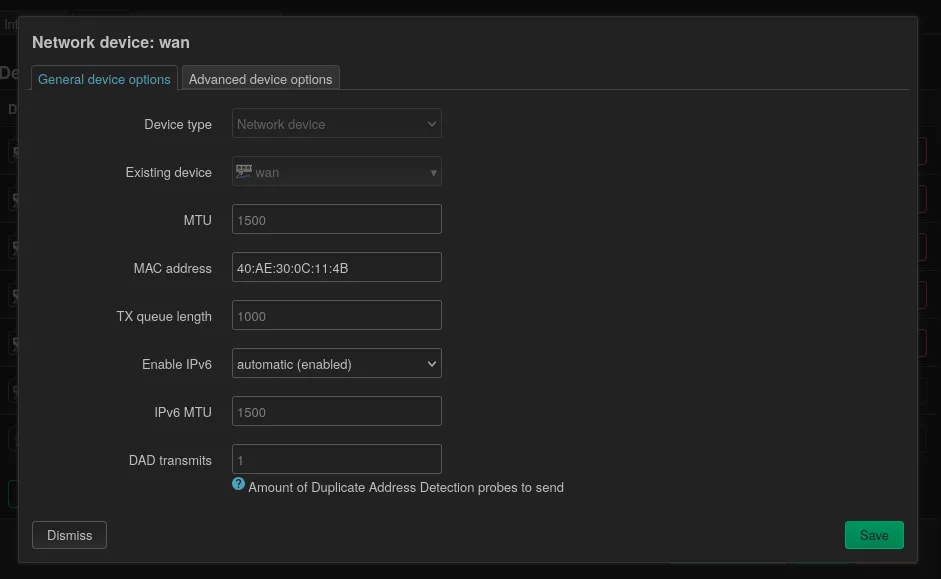
If the provider implements filtering by MAC address, change the MAC address of the WAN interface in Network - Interfaces - Devices - WAN - Configure to the one listed in the provider's personal account, agreement, or support chat. Restart the router and check the internet connection on client devices.
3. Installing Passwall
Passwall is software that allows you to set up a VPN connection (including via the VLESS protocol) on the router. Installation steps:
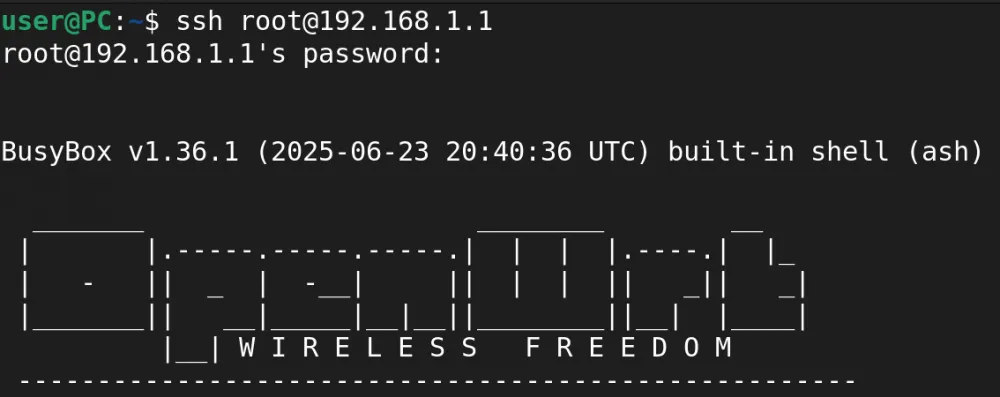
Connect to the router via SSH and enter the router password (if any):
- On Windows, use the SSH client PuTTY: https://putty.org/
- On macOS and Linux, enter in the terminal:
ssh root@router_ip # replace router_ip with the router's local IP
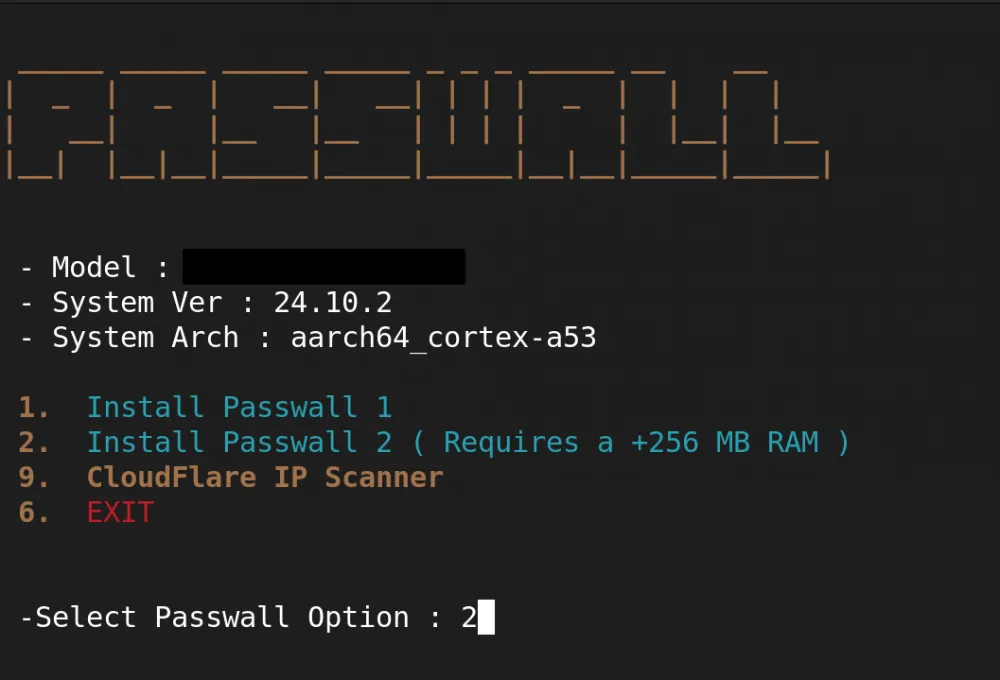
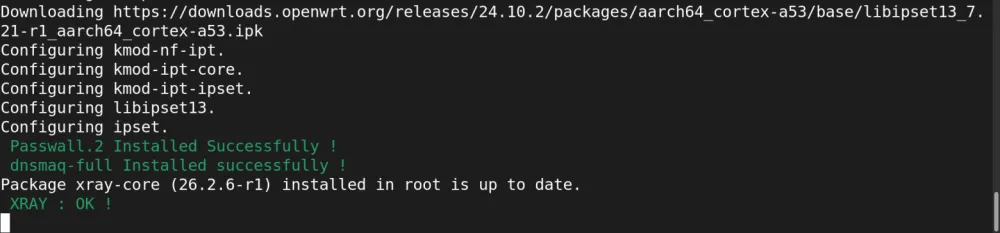
Execute the command that downloads, makes executable, and runs the Passwall installation script:
rm -fpasswallx.sh&& wgethttps://raw.githubusercontent.com/amirhosseinchoghaei/Passwall/main/passwallx.sh&& chmod 777passwallx.sh&& shpasswallx.sh
Select Option 1 (if the router's RAM is less than 256MB) or Option 2 (if the router's RAM is more than 256MB)
Wait for the Passwall installation to finish and reboot the router
(Optional) If the router's hostname changed after running the script, revert it back:
uci set system.@system[0].hostname = "Name" # replace Name with the desired nameuci commit systemecho $(uci get system.@system[0].hostname) > /proc/sys/kernel/hostnamereboot
After these steps, the hostname file should contain the new name, which will also appear in the OpenWRT web interface:
cat /proc/sys/kernel/hostnameCheck for the new menu Services - Passwall in the router's web interface


4. Configuring Passwall
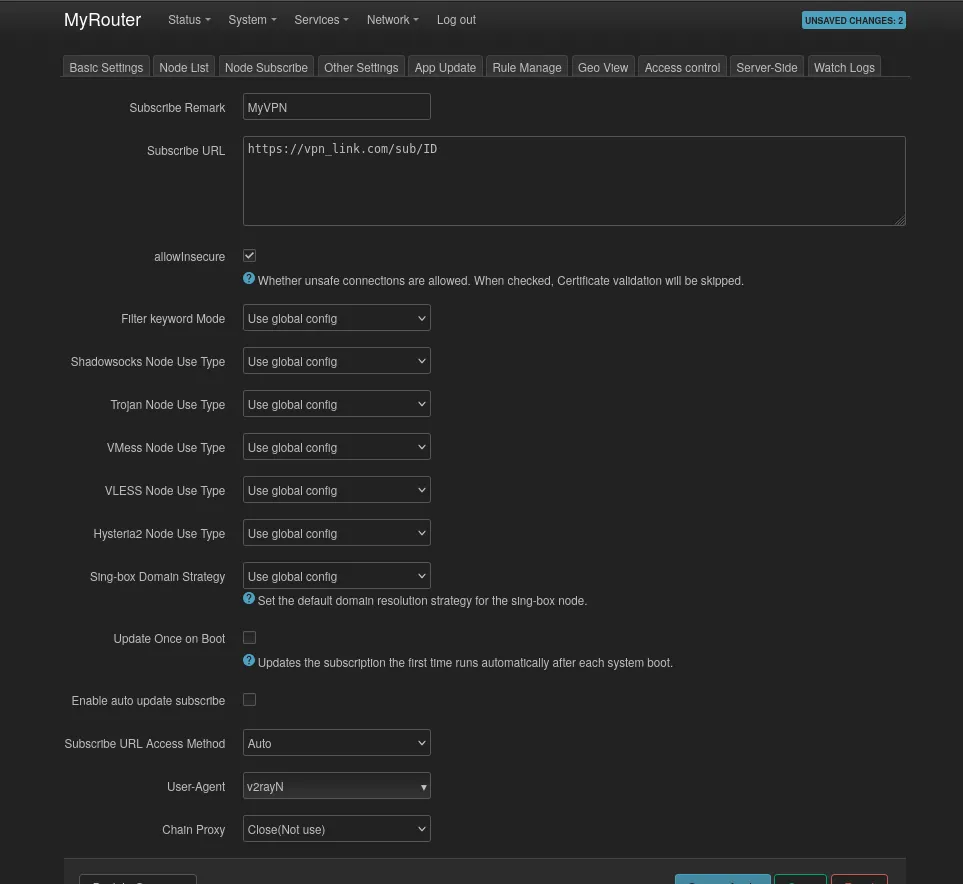
Add a VPN subscription in Services - Passwall - Node Subscribe - Add, entering the subscription name in the Subscribe Remark field and the link provided by the VPN provider in the Subscribe URL field
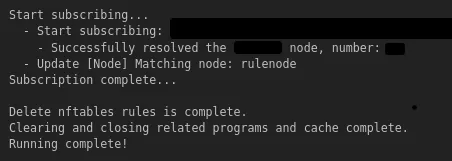
Manually subscribe by clicking on Manual Subscription in Services - Passwall - Node Subscribe and wait for the process to complete. A list of VPN servers with the ability to check their Ping will be displayed in Services - Passwall - Node List
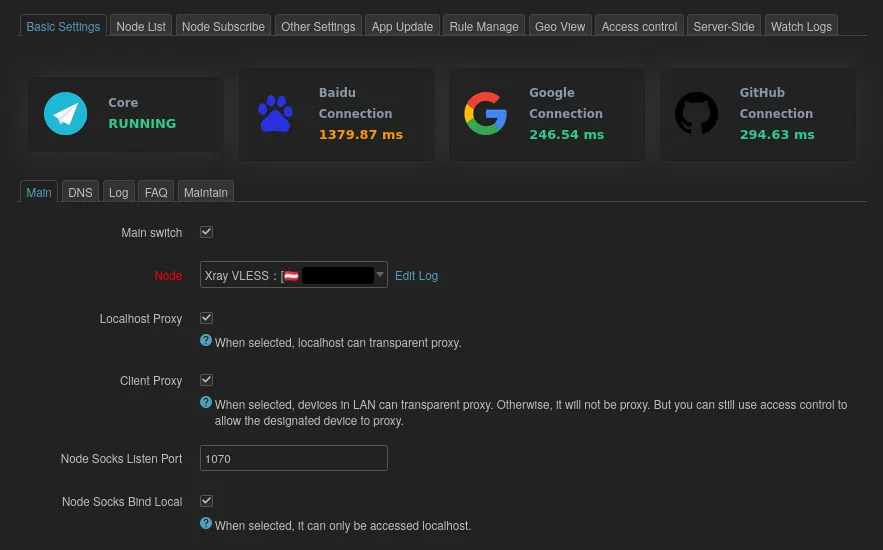
Select a location/server in Services - Passwall - Basic Settings - Main - Node and check the box next to Main switch to connect to the VPN. After a successful connection, a green RUNNING message will appear next to the Core section.
Check the public IP on client devices (for example, on https://whatismyipaddress.com or curl ip.me in the terminal) – the VPN service IP will be displayed

5. Adding Devices to Passwall Exclusions
Disable MAC address randomization on the client device that needs to bypass the VPN. For example, in Wi-Fi settings on Android and Linux with GNOME, you can choose a Stable MAC address – it will be different for each Wi-Fi network, but will not change over time within the same Wi-Fi network
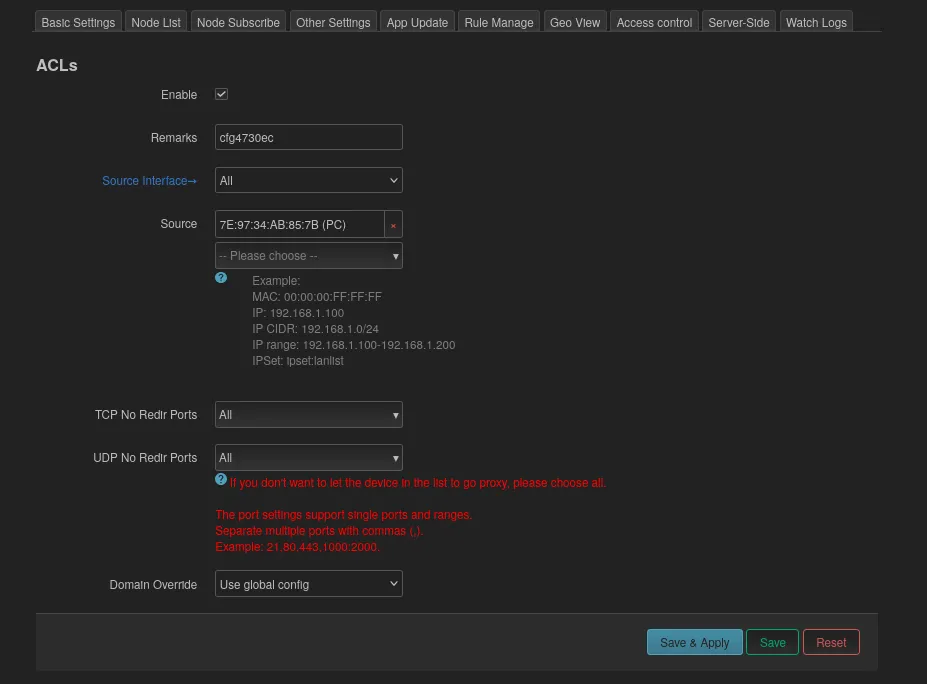
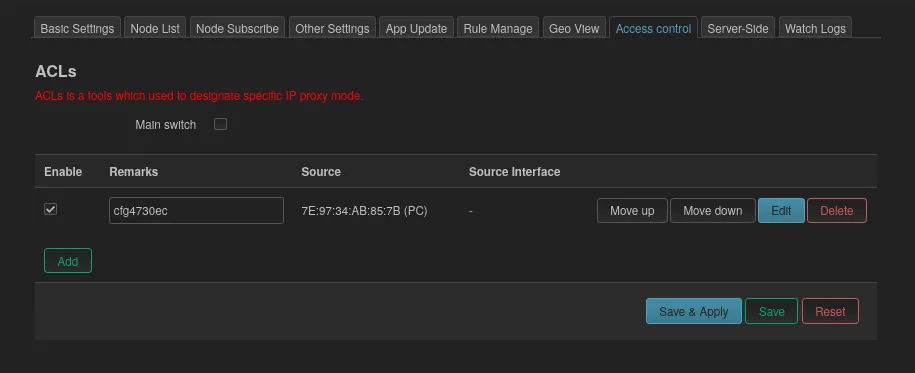
Click Add in Services - Passwall - ACL
- In the Source field, select the MAC address of the desired device
- In the TCP No Redir Ports and UDP No Redir Ports fields, select All
- Click Save & Apply
In the Services - Passwall - ACL menu, check the boxes next to the created rule and Main switch. Click Save & Apply. Check the public IP address on the devices added to this list








Write comment