- AI
- A
Claude Code Agent View Update: Now a Single Window to Manage Dozens of Parallel AI Sessions
On May 11, Anthropic released a new feature for Claude Code — the agent view. This is a session manager: one screen that displays all running parallel Claude Code sessions, their status, and which ones are waiting for input. It is launched with the claude agents command. It sounds like a small improvement, but in practice it solves a real pain point — previously, for three parallel tasks you needed a tmux grid and a mental ledger in your head. I updated Claude Code, tested it for a week, and will share what’s inside and what the limitations are.
Anthropic has rolled out a Research Preview that eliminates the pain of using tmux when working with multiple agents. I tested it for a week — here's how to use it and what its limitations are
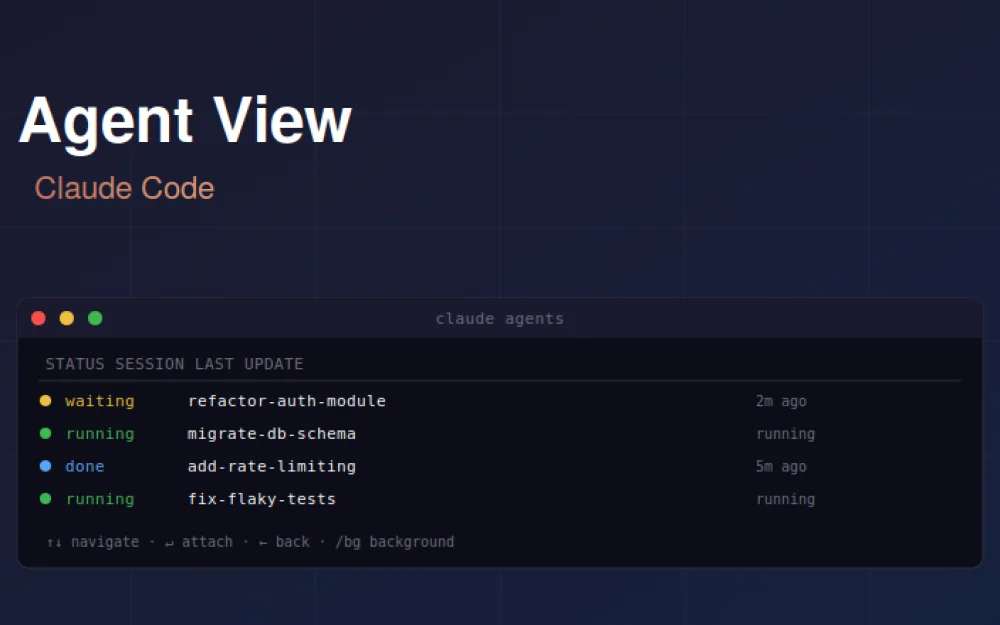
On May 11, Anthropic rolled out a new feature in Claude Code — Agent View. It is a session manager: a single screen that displays all concurrently running Claude Code sessions, their status, their latest response, and which ones are waiting for my input. You can launch it with the claude agents command, or by pressing the left arrow key from any active session.
It sounds like a minor improvement, but in practice it solves a real pain point. Previously, to run three or four tasks in parallel (a typical scenario: one agent refactors the auth module, another writes a database migration, the third fixes flaky tests), you had to spawn a bunch of tmux panels or terminal tabs. Each panel carries its own context in your head, and you constantly had to remember where you launched what, and whether any process had hung. Now everything is in a single list.
I updated Claude Code immediately after the announcement, tested the feature on several real tasks over the course of a week, and will share what's under the hood, how to use it, and what key nuances you should know.
What things were like before, and why Agent View is needed
To understand the value of the feature, you need to at least briefly recall how things worked without it.
Claude Code is a CLI tool. Each session is a separate process running in the terminal. If you only run one task at a time, there are no issues. But Claude Code can run for extended periods (5 to 30 minutes for a serious task like refactoring or fixing tests), and while it is running, you cannot do anything else in that same terminal. That is why experienced users learned to run multiple sessions in parallel — in a tmux grid, in different tabs of iTerm/Terminal/Windows Terminal, or even in separate windows entirely.
This approach works, but it creates well-known problems:
Context in your head. You have to remember which task is in which panel. With five parallel sessions, this is already difficult.
Missed input prompts. Claude Code sometimes asks for clarifications. If you're not watching the right panel, you might miss the question and waste half an hour of the agent's work that's waiting patiently.
Impossible to check results quickly. To understand the state of each session, you have to switch between panels and read each one. Agent view solves all three problems at once. Here's what it looks like with a concrete example. Let's say you have four parallel tasks running. Previously, you would have had a tmux grid of four panels, each with its own context:
┌─────────────────────────────┬─────────────────────────────┐
│ pane 1: refactor auth       │ pane 2: migrate db schema   │
│ > Reading files...          │ > Generating SQL...         │
│ > Found 12 usages           │ > Step 3 of 8               │
│ Continue? [y/n] ← missed    │                             │
├─────────────────────────────┼─────────────────────────────┤
│ pane 3: fix flaky tests     │ pane 4: rate limiting       │
│ > Reading test files...     │ > Implementing middleware   │
│ ✓ test_auth.py fixed        │ Need: redis url? ← too      │
└─────────────────────────────┴─────────────────────────────┘
With agent view, the picture looks different — a single screen with an overview of all sessions:
STATUS    SESSION                       LAST UPDATE
──────────────────────────────────────────────────────
● waiting refactor-auth-module          2m ago
● running migrate-db-schema             running
● done    add-rate-limiting             5m ago
● running fix-flaky-tests               running
● waiting pr-babysitter                 1m ago

PEEK: migrate-db-schema
Generating migration for users table... Step 3 of 8

↑↓ navigate · ↵ attach · ← back
At a glance, you can see which session is waiting for a response (waiting), which is still running (running), and which is completed (done). You can respond inline to any request without fully switching to the session. This is the core value.
How this works in practice
The feature can be launched in two ways: with the claude agents command from a clean terminal, or by pressing the left arrow from any already running session. This opens a list of all your active and recent sessions.
In the list, you can see the following for each session:
Status — running, waiting (waiting for input), or done.
Session name — Claude Code automatically assigns meaningful names to sessions based on the task (such as
refactor-auth-module).Last output line — what the agent is currently doing or what it said most recently.
Last activity time. This is the basic overview. Below are several key interactions:
Peek. Select a session with the arrow keys — you can see the last turn without fully switching to it. This is convenient for quickly checking what the agent just did without losing your current context.
Inline reply. If a session is waiting for your response (status: waiting), you can reply to it directly from the overview. You don't need to switch to it, reply, then switch back. This is the best part — for me personally, it saved me a ton of small context switches.
Attach. If you need to view the full transcript or do something more complex than a short reply — press Enter, and you'll be fully in the session, as if you never left it.
Background. You can run /bg from any active session to send it to the background. Or launch a new session directly in the background using claude --bg "fix the auth bug".
Commands and keyboard shortcuts
The full set of things you need to remember to use this feature.
CLI commands:
Command | What it does |
|---|---|
| Open the agent view from the terminal |
| Launch a new task directly in the background |
| Send the current session to the background |
Keyboard shortcuts inside the agent view:
Key | Action |
|---|---|
| Switch to the agent view from any active session |
| Navigate between sessions + peek at the selected one |
| Fully attach to the selected session |
Status indicators:
● waiting (yellow) — the session is waiting for your input (confirmation, selection, answer)
● running (green) — the session is actively working, making tool calls and writing code
● done (blue) — the task is completed, the result is ready for review or a PR has been created. After a week of using it, I realized the two most important things are:
Left arrow from an active session. When you are in the middle of working on one task and need to check the others — this is the fastest way. No need for Ctrl+C, a new terminal, or a new command. Just press the left arrow, take a look, press the right arrow — and you are back in the exact same session you were in.
claude --bg "task". This is useful when you realize you have several upcoming tasks that can be done in parallel. You don't run it interactively, you start it in the background right away. Claude begins working, appears in the agent view list, and you can monitor it from there.
Real-world use cases I tested this on
To make this concrete, I'll share a couple of use cases from my work week.
Use case 1: a routine workday with three parallel tasks.
In the morning I set myself three tasks: refactoring the old auth module (a large one, 1+ hour), migrating the database schema to a new format (medium, ~30 minutes), and a stack of flaky tests that need to be rewritten (several small ones).
I launched all three. The auth refactoring was run in standard mode, because it's important to see what the agent is doing right away. The migration and tests were run via claude --bg. After that I opened the agent view and switched between tasks as needed.
What worked well: after 15 minutes, the migration task asked which format to use for timestamp fields (UTC or with timezone). I saw the waiting status in the overview, answered inline without breaking away from the auth refactoring. With my old workflow, I would have either found out about this request 30 minutes later, or missed it entirely.
What didn't work as smoothly: the agent view shows the last turn, but does not display progress within a turn. When the agent is working on a single tool call for 10+ minutes, all you see in the overview is the running status and nothing else. The only way to tell if it is actually working or has frozen is to attach to the session.
Use case 2: PR babysitter.
An Anthropic blog post mentions an interesting pattern — long-running agents, like a "PR babysitter". This is a session that periodically checks your open PRs, responds to CI failures, and reacts to review comments. I tried putting together such a session.
I set it up with a simple prompt: "Check my open PRs in repository X every 30 minutes. If there is a CI failure, try to fix it. If there are unresolved review comments, ask me for clarification via inline reply". I ran it in the background.
Over the course of a day, this session managed to fix two minor CI failures (a typo in a test, a sortimport error) and once asked me how to respond to a review comment that required changing an architectural decision. All of this was visible in the agent view — status, last update, whether it was waiting for a response.
I wouldn't call this revolutionary — you could have done the same thing before via a cron job or GitHub Actions. The convenience is that everything is in one window alongside my other tasks, so I don't forget to check it.
What's important to understand
A few points worth knowing before you get too excited or expect too much.
This is not "infinite autonomous mode". Agent view is a session manager, not a runtime. Each session still operates under the same rules as regular Claude Code: usage limits, context window, pauses for input when needed. Running multiple sessions in parallel also counts against your plan's overall quota.
Standard rate limits apply. This is explicitly stated in the Anthropic announcement. If you have a Pro subscription with its per-window message limits, agent view does not override this at all. Ten sessions will simply consume your quota 10 times faster than one.
This is a Research Preview, not production-ready. The feature is currently available for Pro, Max, Team, Enterprise, and API plans. It is activated via claude agents. The "Research Preview" label means Anthropic is still gathering feedback and the feature may be modified. I didn't encounter any serious bugs over the course of a week, but it is still not GA.
Sessions reside on your local Claude Code instance. If you run 5 sessions on one machine and switch to another, you won't see them there. These are not cloud agents like the ones OpenAI offers through its Operator feature. Each Claude Code instance is local.
There is no fundamentally new autonomy. This is important. In several Telegram channels, I have already seen interpretations of the feature as "Claude Code now solves the task continuously until the ideal result." This is simply not true. The session does the same thing as before — it completes your task, and if clarification is needed, it stops and waits. Agent view only improves how you react to this pause.
What I liked as a developer
After a week of use, I formulated the advantages for myself.
Significantly fewer context switches. I didn't count exactly, but subjectively — about one and a half to two times less Cmd+Tab / Cmd+` per working day. It sounds trivial, but by the end of the week it's noticeable.
Inline-reply to requests — gold. This is probably the main thing. Previously, every clarification request from the agent was a separate context switch with switching to the right panel. Now you can reply with one enter from the overview. It just works.
Fewer "forgotten" sessions. Previously, sometimes a session would hang with a question, I would switch to something else and forget about it. I would come back in an hour — lost time. With agent view, it's harder to forget, because the waiting status is always hanging in the overview.
Good idea with named sessions. Claude Code automatically names sessions based on the task. In the overview, this immediately helps — no need to remember "which tab is about auth, and which one about tests".
What I didn't like
So as not to look like an advertisement — where the feature is still debatable.
No progress within the current turn. When the agent makes a large tool call (for example, reading 50 files or editing 10), only the running status and last-line from its previous answer hang in the overview. I would like to see an indicator "working on file X of Y", but it's not there.
No filtering/grouping. If you have 15-20 sessions — the list becomes long. I didn't find any filters "show only waiting" or grouping by projects. Perhaps they will finish it.
You can't "listen" to two sessions at the same time. Peek shows only one selected one. If you have two sessions both in waiting and both require answers in different contexts — you have to jump between them.
With a small number of sessions, there is little benefit. If you run one task at a time — the feature is useless to you. It pays off with 3+ parallel sessions, with 1-2 it's just an extra screen.
` &istok=`habr.com





Write comment