- Hardware
- A
Trackball instead of a mouse: who likes it, who doesn't, and why
In the previous article, I talked about how I exercised my wrist at 26, how I built the Corne, how I then switched to the Omega Point 36, on which I still sit to this day. With the split keyboard, I've closed the topic—I've already redesigned this part of my workspace for myself.
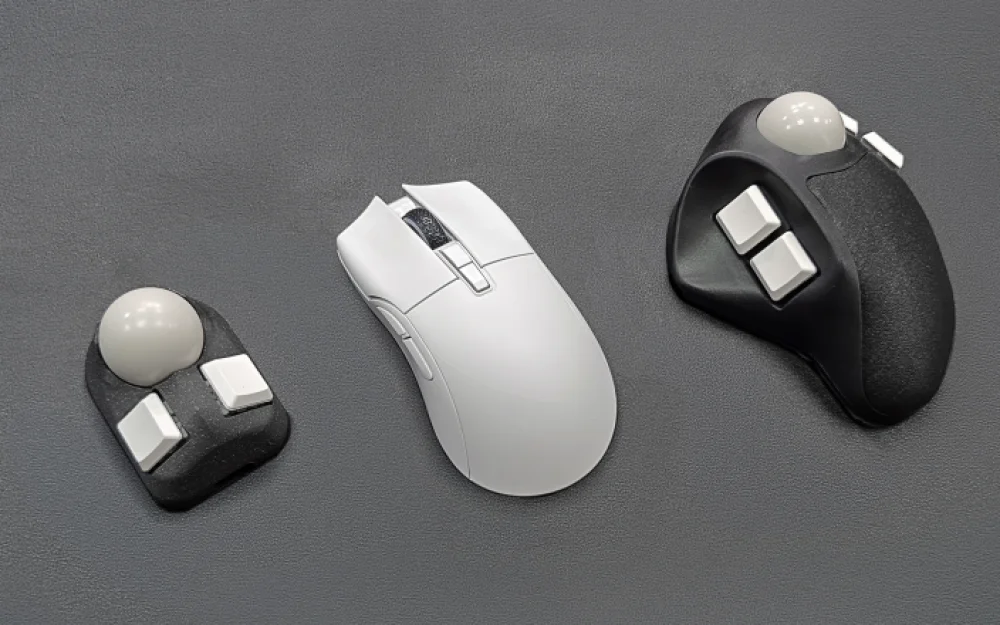
The story with the mouse is different. I have a regular mouse that I've replaced a couple of times, but always with the same kind. Meanwhile, several colleagues at Ergohaven have switched to trackballs over the past few years, and I've been observing from the sidelines. I see how they get used to it, what they talk about after a month, and what ultimately remains. I also tried a trackball for two weeks myself: more on that below.
So this won't be an article like "how I switched to a trackball, join me." Instead, it'll be an analysis: what it is, where the benefits come from, who likes it, who doesn't, and what the point is here anyway.
What This Is Even About
A trackball is a pointing device where, instead of moving the entire device, you rotate a ball on its housing. The housing itself stays in place; only the ball moves, and the cursor follows it. You can control it with fingers or the thumb—depending on the design.
For someone seeing this for the first time, the logic isn't obvious. Why not just move the whole mouse like normal people? The answer is simple: when you move a mouse, your wrist, forearm, and often the entire forearm are set in motion. When you rotate a ball, only the fingers move. For one click, the difference is zero. For ten hours of work a day, for years—the difference becomes arithmetic.
This is the same logic by which a split keyboard differs from a regular one: not "better," but a smaller range of motion per unit of work. At some point of accumulation, this starts to matter.
Where the Advantages Come From
Range of motion. With a mouse, the cursor is controlled by the whole hand, sometimes the forearm. With a trackball—by the fingers. Over short distances (hitting a nearby button), the difference is small. Over long distances (dragging a window across two monitors), the mouse is faster at the start but requires more physical effort. Overall, over the course of a day, the hand on a trackball moves significantly less.
Number of variables in the system. Mouse accuracy depends on two things: the sensor and the surface under it. With a trackball, there is only one variable: the sensor and the ball, which are always under the same conditions. Essentially, there is no table under it. For people who often work at different desks, this is noticeable.
Space. A mouse needs a pad. Even a small mouse on a small pad still occupies a zone where you can't put anything else. A trackball stays where you put it and doesn't move. For someone with a large desk, this isn't an argument; for someone with a compact workspace, it is.
Wrist geometry. When using a mouse, the wrist lies in pronation: the palm faces down, the forearm is twisted. With a trackball, the posture is similar, but the wrist works less as a physical unit and doesn't extend sideways as much—the trackball is usually wider than a mouse, and the hand rests over it, not to the side. For some this is critical, for others it isn't. How you adapt to a given geometry is an individual question.
Real examples
To avoid turning this text into pure theory—here are a couple of stories from colleagues.
3D Engineer. Works mainly in Plasticity and related tools. Switched to a trackball simply out of curiosity, when he was designing one himself. The first week he complained, the second he was getting used to it, and by the third he was working fully. The main effect, according to him, wasn't health (he was already fine) but that space appeared on the right side of the desk. Currently, by the way, he is also mastering a 3D manipulator of the type that twists, tilts, and presses simultaneously—specifically for modeling.
Designer. His transition was difficult. Works mainly in graphic editors requiring pixel-perfect accuracy. He mastered the trackball but keeps a tablet under his right hand simultaneously: anything requiring drawing—tablet; everything else—trackball.
The common thread running through these and other stories around me:
- The transition is individual, but budget for one or two weeks of discomfort.
- The main benefit is greater comfort and lack of fatigue during long PC sessions.
- More space on the workspace: the desk clears up, the hand moves less.
- At first, the finger used to roll the ball gets tired. Then it passes.
Finger and thumb trackballs
An important fork in the road that shouldn't be forgotten: trackballs come in different types.
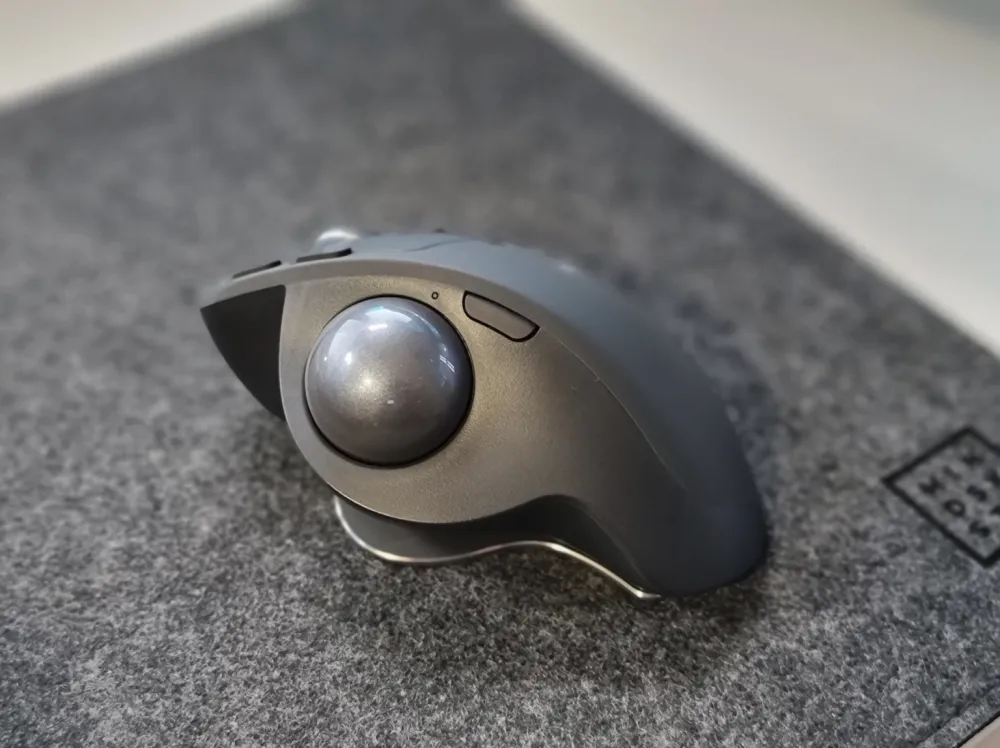
Thumb trackball — the ball is under the thumb. The other fingers rest on buttons, like on a regular mouse. Simpler to get used to, because you place your hand almost the same way as on a mouse. The most well-known example on the market is the Logitech MX Ergo; many start their acquaintance with the format with it. The downside — all cursor work falls on the thumb. For some, this is fine; for others, it's overkill, especially if the thumb is already busy (phones, gamepads).
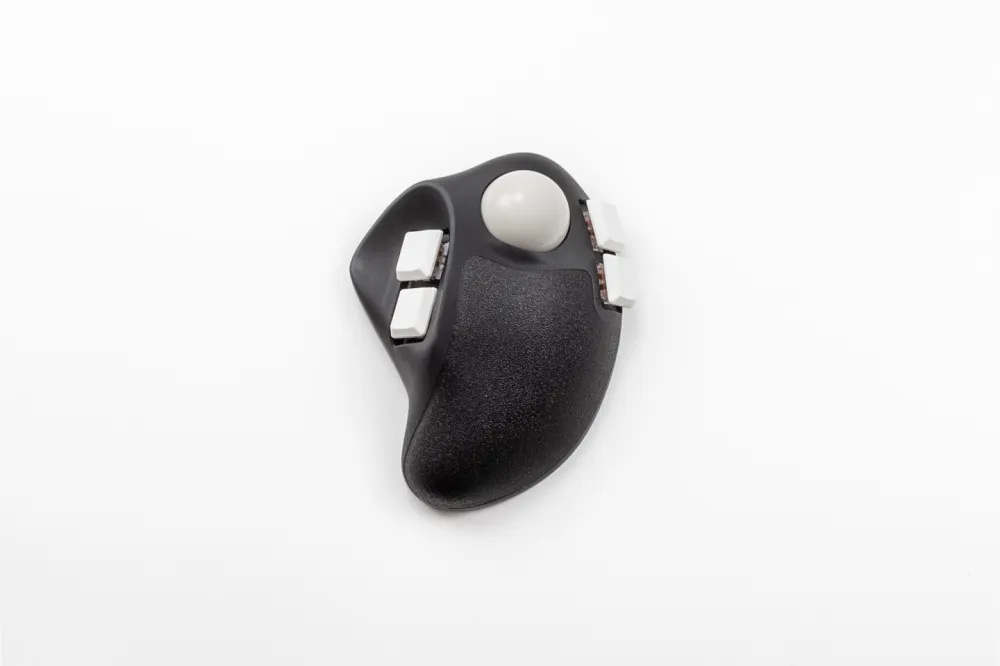
Finger trackball — the ball is under the index and middle fingers. The thumb handles the main clicks on the side. Finer control — the index and middle fingers are more "analog" fingers; all precise movements in life are made with them. The downside — longer adjustment period.
There is no universal answer. Just like with keyboard form factors: until you hold it in your hands, the feeling can't be conveyed. If there's a chance to try both formats — it's worth taking that opportunity before buying.
Tips for beginners — what I've heard from colleagues myself
Don't put the mouse away on the first day. Place the trackball next to it. In tasks requiring speed (burning deadline, small design tweaks), use the mouse. Everything else — on the trackball. After a few days, the mouse will start getting in the way on its own.
Immediately lower the sensitivity. By default, the trackball seems too sharp — the ball has inertia, and the cursor flies past. Drop the DPI lower than it was on the mouse. Once your hand gets used to it, you can raise it back up.
Master sniper mode. Almost all decent trackballs have a button that temporarily cuts sensitivity several times over. A lifesaver for hitting small interface elements. Many start using it as their primary precision tool within a week.
Retrain long cursor movements to hotkeys. If you used to wildly wave the mouse across two monitors to switch windows — it's now easier to assign a hotkey. This works better with a mouse too, but on a trackball, the motivation appears faster.
Give yourself time. Two weeks is the threshold after which it becomes clear whether it's for you or not.
Honest drawbacks to know about beforehand
The ball gets dirty. On a mouse, the sensor faces downward and collects dust from the desk. On a trackball, the ball rests on supports that get clogged with skin oil and fine dust. Removing, wiping the ball and supports with a napkin, and putting it back takes a minute, but it needs to be done as it gets dirty.
If the RSI is in the fingers. Trackballs are often written about as a solution for wrist pain, and that's true for most scenarios. But if your problem is already localized in the fingers (trigger finger, pain at the base of the thumb), a trackball won't unload it—it will add to it. It shifts the work from the wrist to the fingers. I'll repeat what I already said in a previous article: if it hurts, not just aches—that's a doctor's territory, not a peripherals choice.
Gaming. Strategies, turn-based games, isometric titles—it plays fine. Competitive shooters—no. The ball physically doesn't provide the same reaction speed for sudden flicks as a good gaming mouse. If esports is your life, a mouse will still be lying next to the trackball.
Setup and tasks decide. Personally, for example, I used a trackball for a couple of weeks and ended up sticking with the mouse. Not because of the idea or because "it didn't grow on me"—my arm really did get less tired. It's just that I have three monitors, and the cursor needs to travel long distances dozens of times a day. The mouse is faster for this: one wrist movement and the cursor is there. On a trackball, the same distance takes several ball scrolls or a hotkey. Both options work, but in my specific scenario, the mouse won on speed. This is to say that a trackball isn't "universally better"; every workflow has its own arithmetic.
What's next if the topic intrigued you
The logical continuation of the "move your hand less" idea is keyboards with built-in pointing devices. Then the hand doesn't leave the home row at all, and a separate pointing device isn't needed.
Several manufacturers are moving in this direction with different solutions. For example, ZSA recently released the Navigator module for their split Voyager keyboard—a separate trackball block on magnets that attaches to one half of the keyboard.
![From Virtual Hands to AI for Survivalists: Curious Open Agent OSes [and One Hardware Project]](https://cdn.tekkix.com/imgs/2026/05/habrcom/big/ce0b1057616faed51cd8b9f3b2b9.webp)

Write comment