- AI
- A
Explyt Spring. Tools for MCP Server plugin
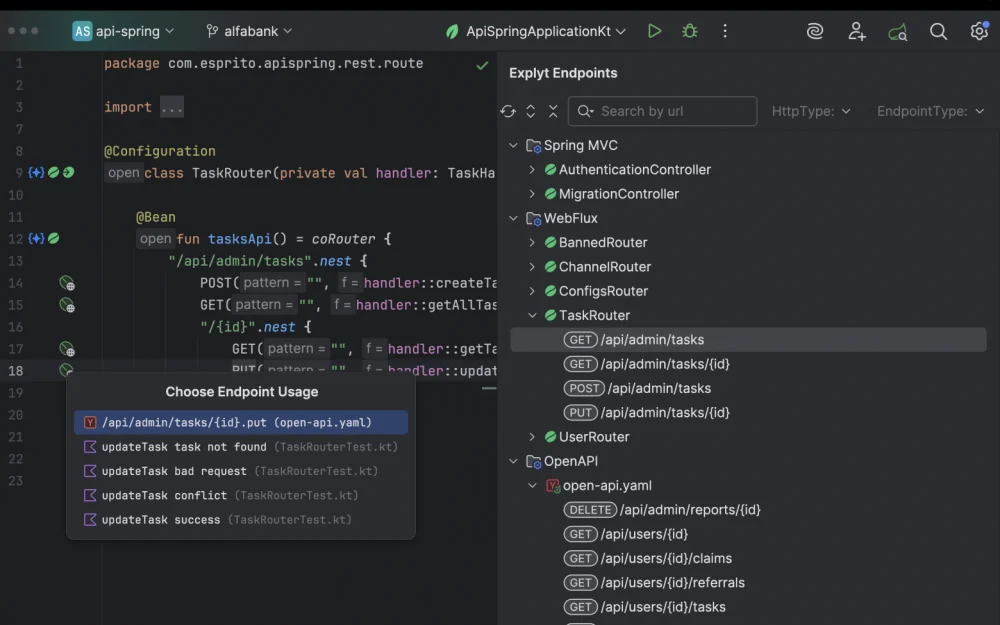
Hello everyone! The Explyt Spring team is here. We recently released another version that includes support for the MCP Server plugin. We added tools that facilitate working with Spring projects for LLM.
Previously, we had an article where we discussed the integration with the Explyt AI plugin. These were simple prompts for generating: DTO, Entity, SQL scripts, and more. Despite their simplicity, they added necessary information to the prompt for performing specific actions: the required file, the type of database - which is connected to the project, the library for working with Entity - javax or jakarta, and more. Now it's time to add full-fledged agent Spring "tools" for LLM to more accurately understand the context of a Spring application.
MCP Server Plugin
Starting from version 2025.2, IDEA has a built-in bundled plugin MCP Server, which is also available in the Community Edition and OpenIDE in a similar version and has open source code. This means that all the main work has already been done and there is already all the necessary infrastructure: a ready service – accessible via URL and a basic set of “tools” from JetBrains. These "tools" are implemented with consideration of the IDEA code model and use its core features for refactoring, searching for elements in code, and more. As a result, the “refactorings” triggered by LLM, through JetBrains tools, are performed as accurately as if you had invoked this functionality manually from IDEA.
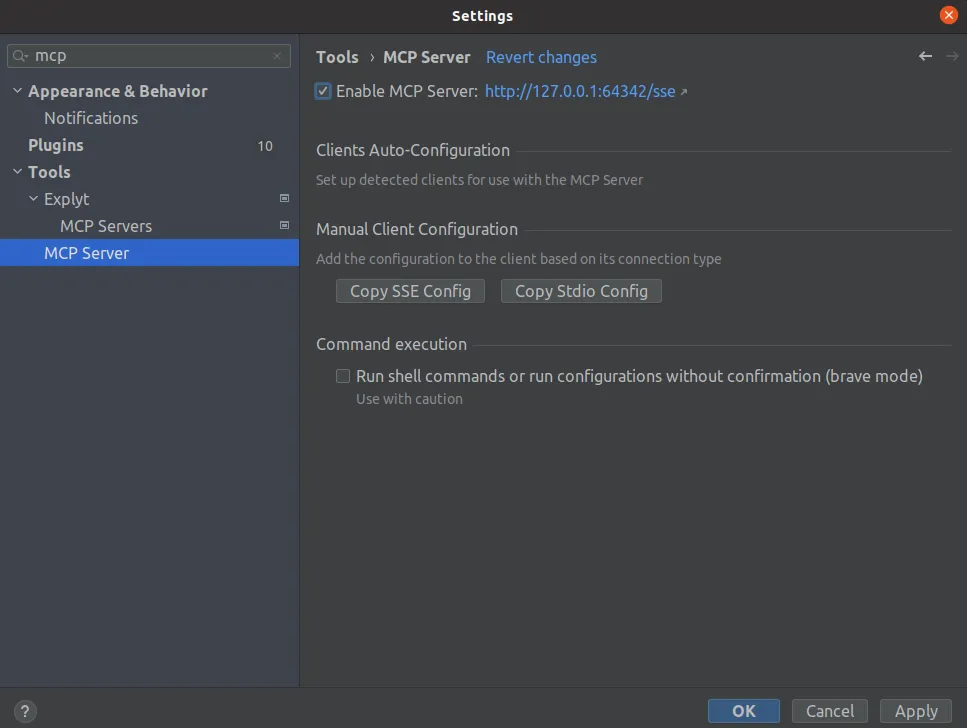
And we just need to implement a specific extension point of the MCP Server plugin to add our own “tool” there. Then we connect this MCP Server to any AI plugin for IDEA that supports this functionality – working with LLM in agent mode. This way, we will be able to use all the tools that are implemented there.
Creating our tool
To create your own tool, you need to implement the extension point McpToolset and add its implementation to plugin.xml.
This is how the simplest toolset will look:
class TestToolset : McpToolset {

    @McpTool("my_best_tool1")
    @McpDescription(description = "My first tool")
    fun myBestTool1(
        @McpDescription("Path to the project root") projectPath: String
    ): String {
        return "I am best tool from $projectPath"
    }

    @McpTool("my_best_tool2")
    @McpDescription(description = "My second tool")
    fun myBestTool2(
        @McpDescription("Arg1") arg1: String,
        @McpDescription("Arg2") arg2: Int,
    ): String {
        return "I am tool with params $arg1 & $arg2"
    }
}
We have created a class in which we describe the tools.
The McpTool annotation sets the name of the tool. If no value is specified, it defaults to the method name.
The McpDescription annotation sets the description of the tool and its parameters. This is the most important part that determines when the LLM will call the tool and with what parameters. It should be written in such a way that it can understand what you want from it.
The result can be returned as a string, a primitive type, or an object that can be serialized to JSON. By default, the MCP Server plugin uses Kotlin Serialization.
Explyt Spring Tools
In our plugin, we have implemented the following tools for Spring Boot applications:
explyt_get_spring_boot_applications – returns all root points for all Spring Boot projects in the user's current workspace. It also adds the Spring Boot version and a list of connected Spring Boot Starters, build system type, etc., to the response.
explyt_get_project_beans_by_spring_boot_application for a specific Spring Boot application returns a list of all the project's "beans". To save tokens, we do not return all "beans" at once; instead, there is a second argument - the type of "bean" we want to retrieve: Repository, Controller, Aspect, etc.
Let's take a look and check how this works. We will use the Explyt plugin for working with LLM, it supports agent mode, connection to external MCP servers, and provides all the necessary capabilities for working with code:
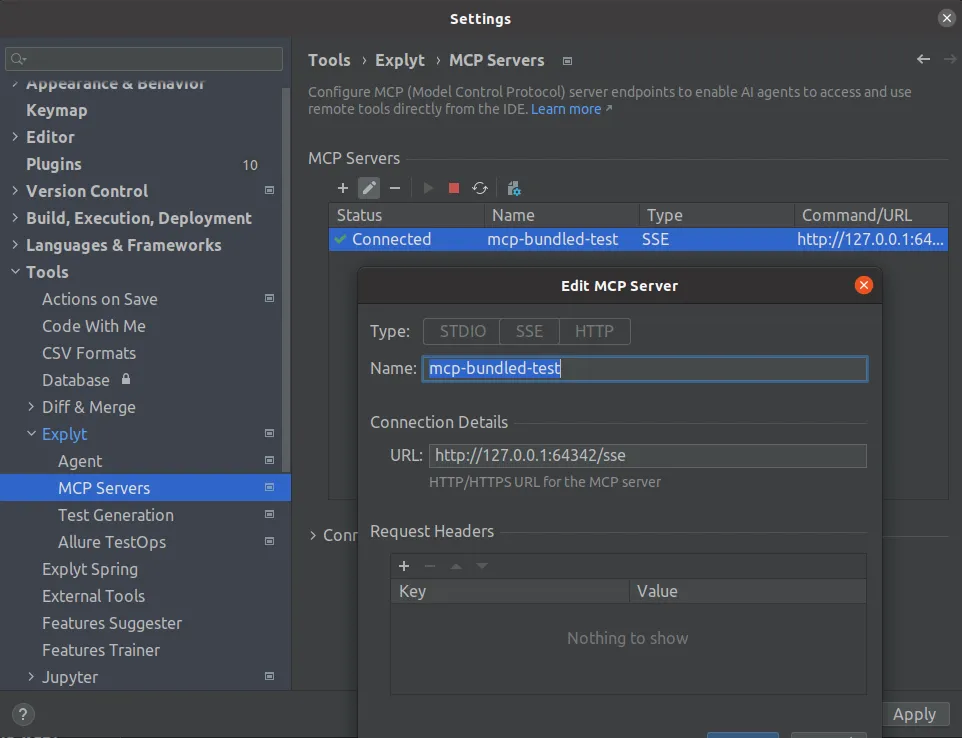
Here’s how we connect the bundled MCP Server to the Explyt plugin – everything is ready. Next, let's check what we got. We'll ask the model about the presence of Spring Boot projects and controllers in it:
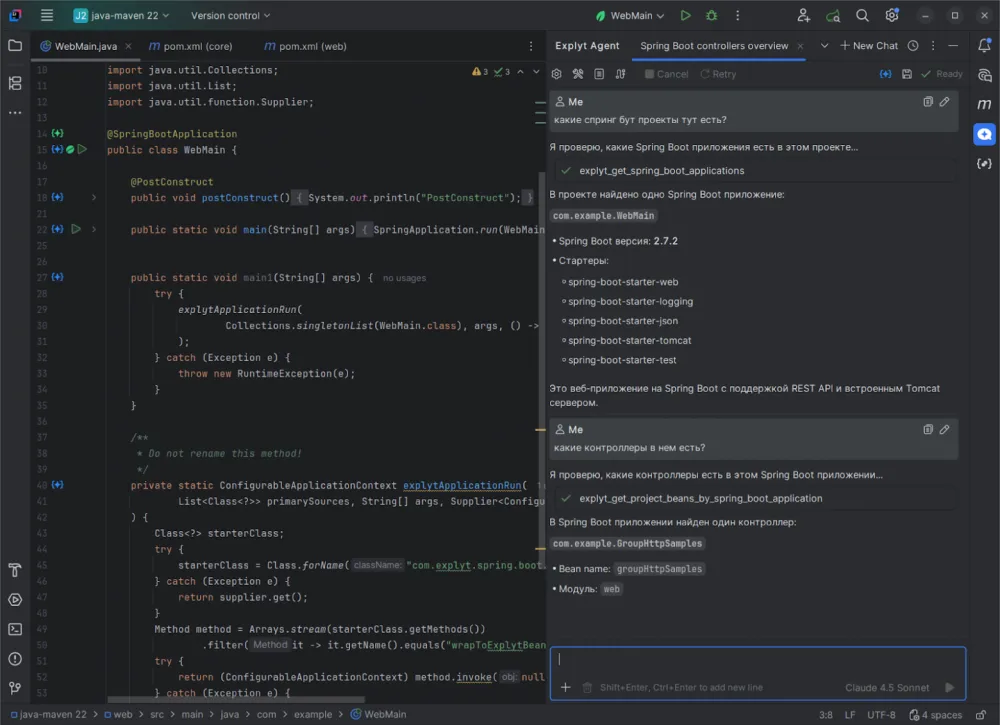
It is clear that only our tools, which we just created, were used. Now let's turn them off (Explyt plugin provides such an feature) and try the same requests again, but with the default "tools" without Spring:
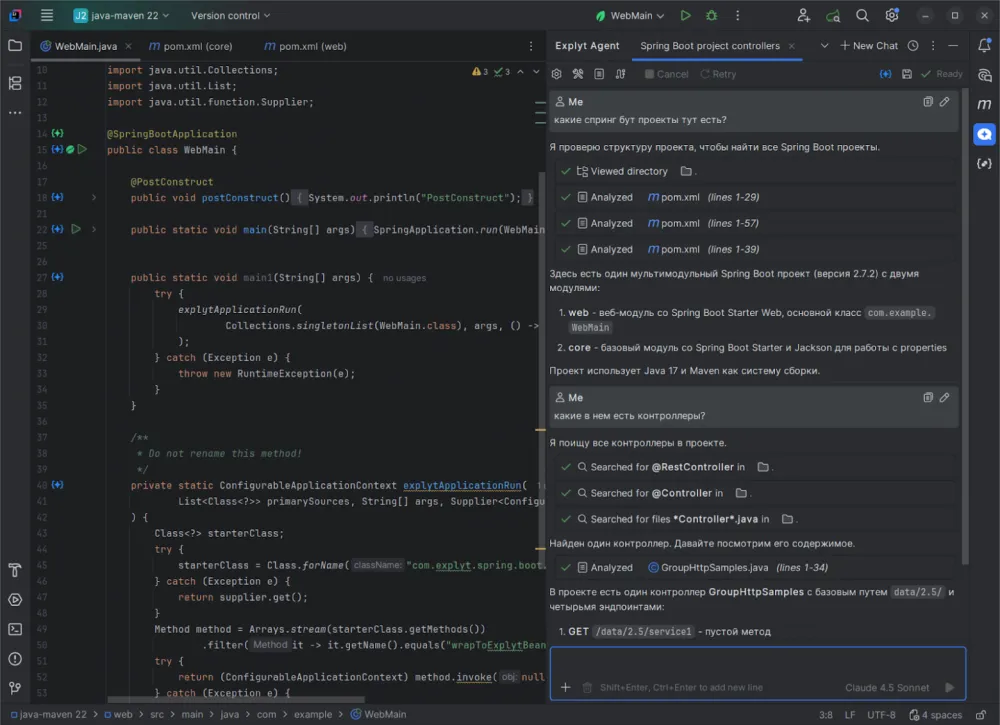
It is visible that a much larger set of tools was used, which means that the model "consumed" more tokens and performed many more actions to scan and analyze the files in the project, which also increases the likelihood of errors. Searching for "bins" and supporting Dependency Injection is a strong point of the Explyt Spring plugin, which allows us to ensure greater accuracy in such cases with lower costs: both in terms of time and tokens. These tools can assist in developing a Spring Boot application, allowing LLM to better understand the context of the application with lower resource costs - when it is necessary to refine the project for various user requests.
Conclusion
We believe that AI assistants are not a replacement for developers, but a powerful tool that takes on the most tedious and repetitive work, freeing up our time for architecture, optimization, and solving complex tasks. We hope that our MCP "tools" for Spring will help you in your daily work. Functionality is available starting from IDEA version 2025.2 and only for Spring Boot projects.
What other routine tasks in Spring do you encounter daily? What would you like to automate first? We would be happy to discuss in the comments!
We invite you to try our plugin and share your feedback and suggestions. Your feedback will help us make the tool more useful and convenient. For bug reports and feature requests — GitHub Issues and Telegram chat with the Explyt Spring plugin team. We also remind you that the Spring plugin has open source code available on GitHub.












Write comment