- Security
- A
Installing GrapheneOS via Debian-based Linux Terminal
How to install GrapheneOS without a browser using the command line on a Debian PC or its derivatives.
GrapheneOS – one of the most secure mobile operating systems in the world. We have written a detailed article about its advantages.
The recommended method for installing GrapheneOS by the developers is the Web-installer. The entire process requires pressing four buttons in the browser and takes less than an hour. However, for more advanced users, there is a installation via terminal for Linux, macOS, or Windows.
Advantages of this type of installation:
The ability to download the release file and necessary software in advance and perform the installation offline.
A deeper exploration of the installation process through interaction with the terminal.
Below is the installation process for GrapheneOS via terminal on Debian-based operating systems.
Requirements:
Officially supported Google Pixel with the latest OS updates. As of February 2026, the list is as follows:
Device
Manufacturer Support End
Manufacturer Support Duration
Google Pixel 10 Pro Fold
October 2032
7 years
Google Pixel 10 Pro XL
August 2032
7 years
Google Pixel 10 Pro
August 2032
7 years
Google Pixel 10
August 2032
7 years
Google Pixel 9a
April 2032
7 years
Google Pixel 9 Pro Fold
August 2031
7 years
Google Pixel 9 Pro XL
August 2031
7 years
Google Pixel 9 Pro
August 2031
7 years
Google Pixel 9
August 2031
7 years
Google Pixel 8a
May 2031
7 years
Google Pixel 8 Pro
October 2030
7 years
Google Pixel 8
October 2030
7 years
Google Pixel Fold
June 2028
5 years
Google Pixel Tablet
June 2028
5 years
Google Pixel 7a
May 2028
5 years
Google Pixel 7 Pro
October 2027
5 years
Google Pixel 7
October 2027
5 years
Google Pixel 6a
July 2027
5 years
Google Pixel 6 Pro
October 2026
5 years
Google Pixel 6
October 2026
5 years
PC with Debian-based OS: Debian 12 / 13, Ubuntu 22.04 LTS / 24.04 LTS / 25.04 LTS, Linux Mint 21/22/Debian Edition 6 with the latest updates, 2GB RAM and 32GB of free space. It is not recommended to use virtual machines – only a physical OS.
High-quality USB cable that supports data transfer (preferably included with Google Pixel). USB hubs and docks may interrupt the installation process.
Installation Algorithm
BEFORE INSTALLING, FULLY FAMILIARIZE YOURSELF WITH THE GUIDE. IN CASE OF ANY DISCREPANCIES WITH THE OFFICIAL INSTRUCTIONS OR OUTDATEDNESS OF THIS ARTICLE, FOLLOW THE STEPS DESCRIBED ON THE DEVELOPERS' SITE.
1. Preparing the Smartphone/Tablet
Enable Developer Options in Settings - About phone/tablet by tapping on the Build number option several times. You will need to enter your PIN if it is set.
Go to the appeared menu Settings – System – Developer options and enable OEM Unlocking. To make this option available, you need to connect Google Pixel to the internet at least once.
2. Preparing the PC
1. Install platform-tools for fastboot operations and verify their integrity
sudo apt install libarchive-tools
curl -O https://dl.google.com/android/repository/platform-tools_r35.0.2-linux.zip
echo 'acfdcccb123a8718c46c46c059b2f621140194e5ec1ac9d81715be3d6ab6cd0a platform-tools_r35.0.2-linux.zip' | sha256sum -c
bsdtar xvf platform-tools_r35.0.2-linux.zip
2. Add platform-tools to the PATH environment variable so that executables can run from the specific directory
export PATH="$PWD/platform-tools:$PATH"
After entering the command, you cannot close the current session in the terminal. If you need to open a new session, you must enter this command again.
3. Check the version of fastboot
fastboot --version
The output of the command should show the presence and version of fastboot.

4. Install android-sdk-platform-tools-common and disable fwupd for the correct operation of scripts with USB devices. Install OpenSSH for verifying the authenticity of the OS release file
sudo apt install android-sdk-platform-tools-common
sudo systemctl stop fwupd.service
sudo apt install openssh-client
fwupd will start after rebooting the OS.
5. Download the GrapheneOS image and verify its authenticity
Download the GrapheneOS image and its signature, replacing DEVICE_NAME with the code name of the specific Google Pixel model (you can find it on the releases page) and VERSION with the current version of the OS.
curl -O https://releases.grapheneos.org/DEVICE_NAME-install-VERSION.zip
curl -O https://releases.grapheneos.org/DEVICE_NAME-install-VERSION.zip.sig
For example, for the Google Pixel 6a, the command would look like this (for version 2025100300):
curl -O https://releases.grapheneos.org/bluejay-install-2025100300.zip
curl -O https://releases.grapheneos.org/bluejay-install-2025100300.zip.sig
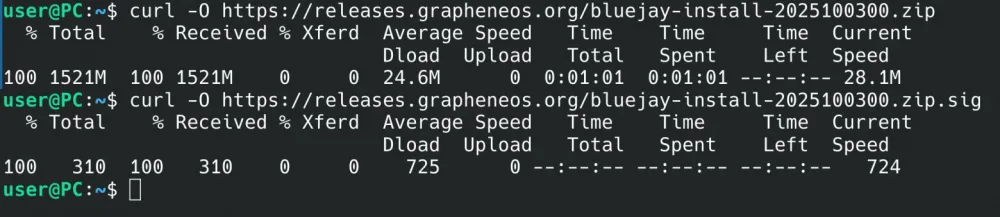
Download the developer's public key:
curl -O https://releases.grapheneos.org/allowed_signers

The contents of the allowed_signers file:
[email protected] ssh-ed25519 AAAAC3NzaC1lZDI1NTE5AAAAIIUg/m5CoP83b0rfSCzYSVA4cw4ir49io5GPoxbgxdJE
Verify the release, replacing DEVICE_NAME-install-VERSION with the corresponding device model and OS version:
ssh-keygen -Y verify -f allowed_signers -I [email protected] -n "factory images" -s DEVICE_NAME-install-VERSION.zip.sig < DEVICE_NAME-install-VERSION.zip
If the verification is successful, the output should be:
Good "factory images" signature for [email protected] with ED25519 key SHA256:AhgHif0mei+9aNyKLfMZBh2yptHdw/aN7Tlh/j2eFwM

6. Extract the downloaded archive, replacing DEVICE_NAME-install-VERSION with the corresponding device model and OS version:
bsdtar xvf DEVICE_NAME-install-VERSION.zip
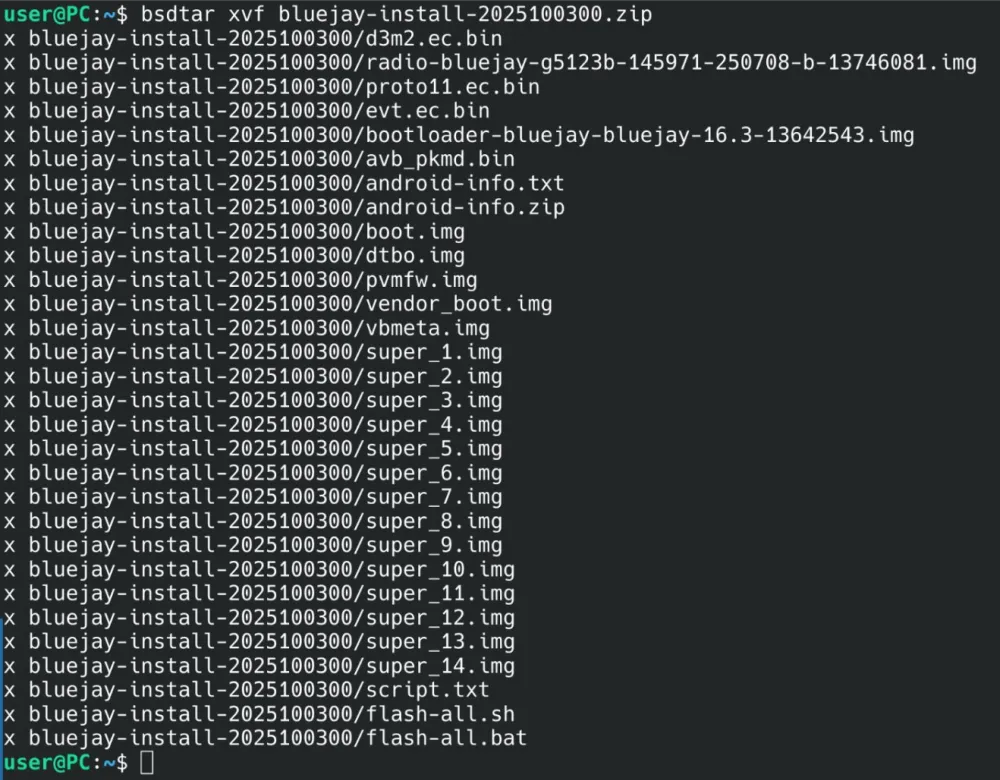
3. Installing GrapheneOS on Google Pixel
1. Enter the bootloader interface on Google Pixel
Restart the smartphone/tablet by holding the volume down button. An alternative option is to turn off the device and turn it on using the Power and volume down button combination.
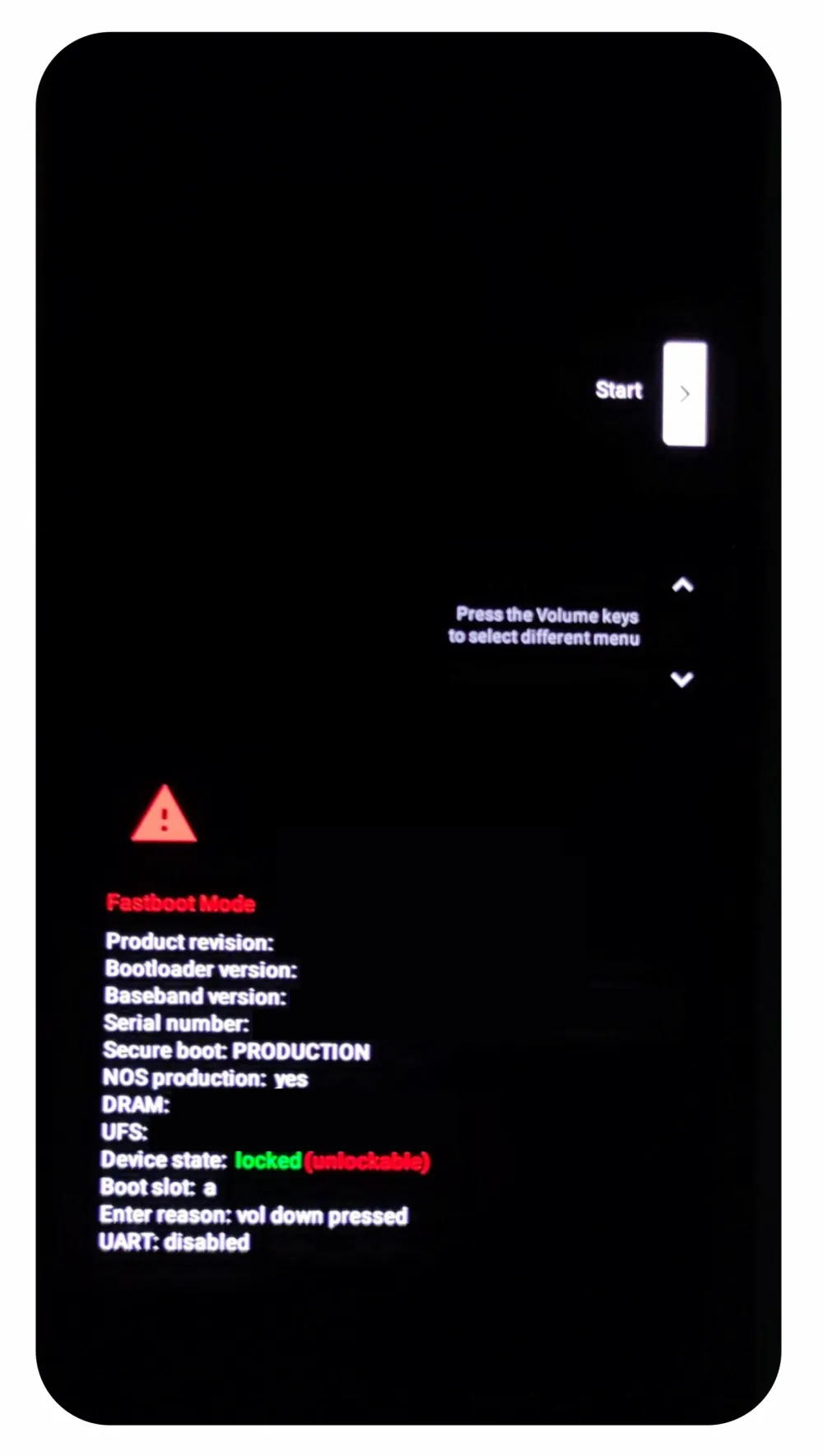
The device will display a screen with the text Fastboot Mode and a red triangle. The Device state parameter should show locked (unlockable). If not, check if the OEM Unlocking option is enabled in the developer options.
2. Connect Google Pixel to PC without exiting the bootloader interface
3. Unlock the Google Pixel bootloader to install an alternative OS
fastboot flashing unlock
The command will require confirmation on the actual Google Pixel. You need to select the corresponding option Unlock the bootloader using the volume buttons and confirm with the Power button.
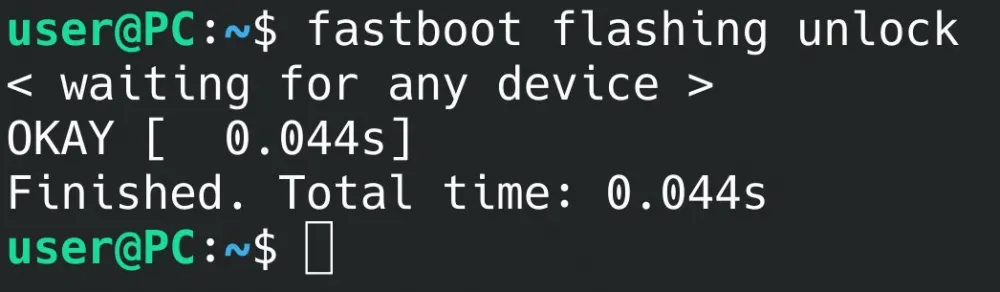
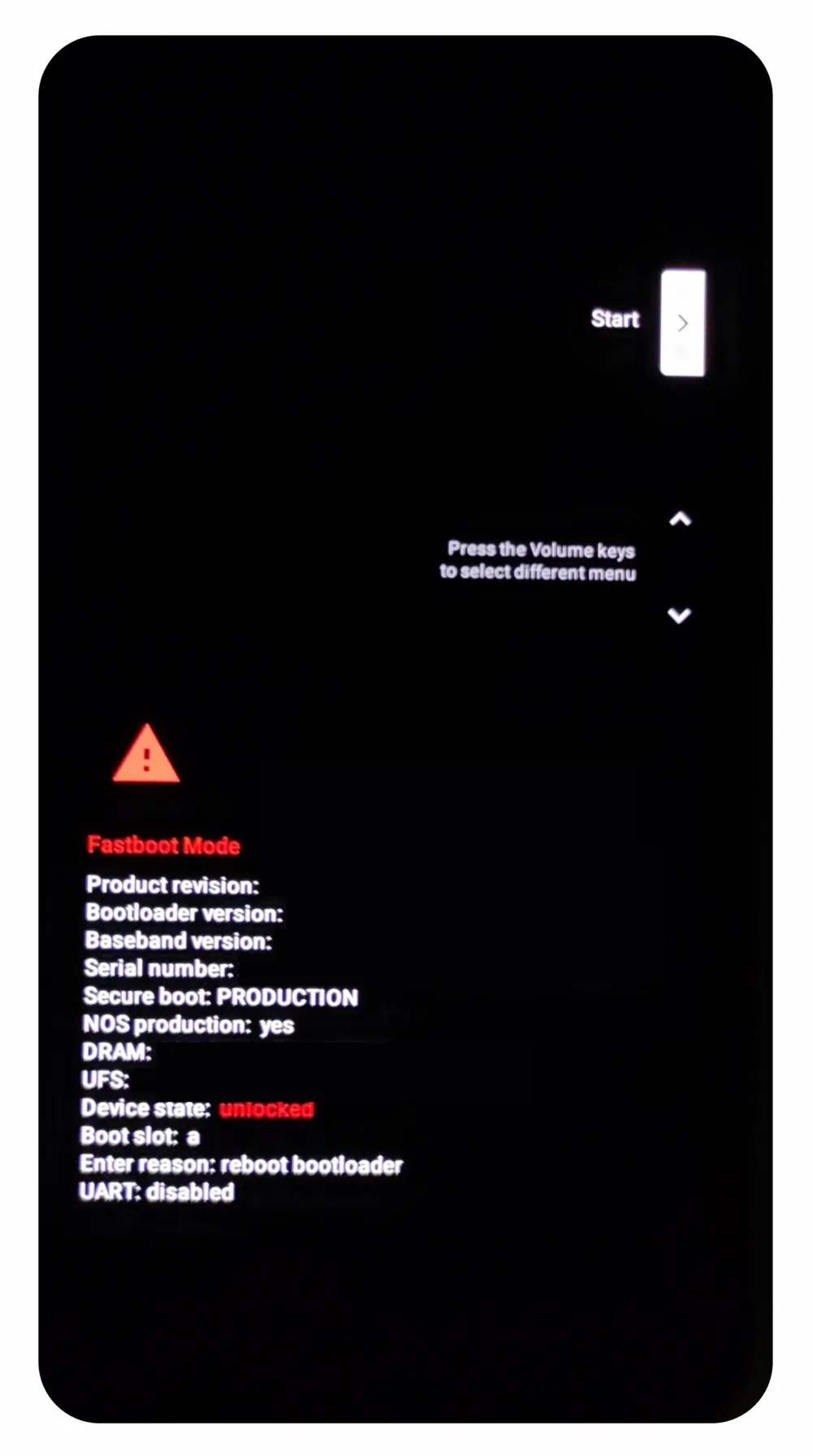
The option Device State should change to unlocked.
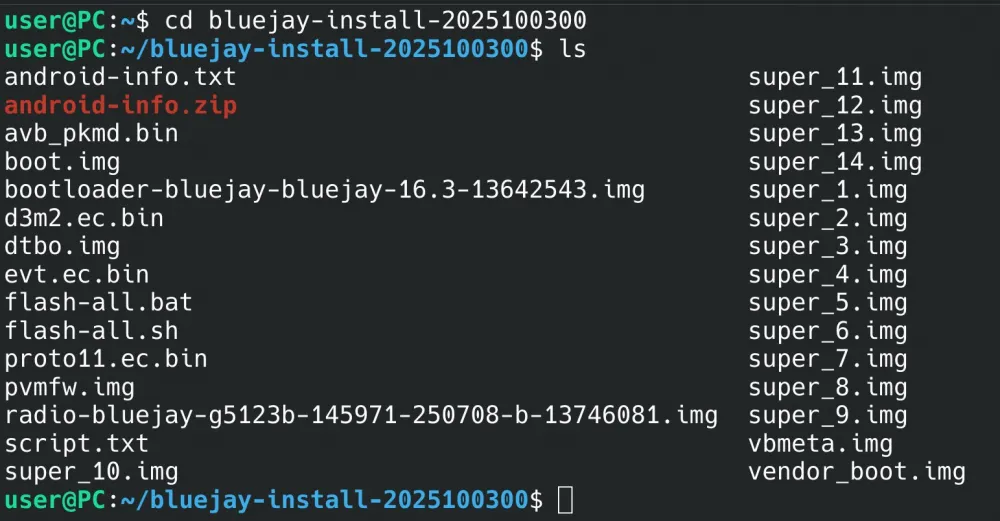
4. Navigate to the directory with the necessary scripts, replacing DEVICE_NAME-install-VERSION with the appropriate device model and OS version:
cd DEVICE_NAME-install-VERSION
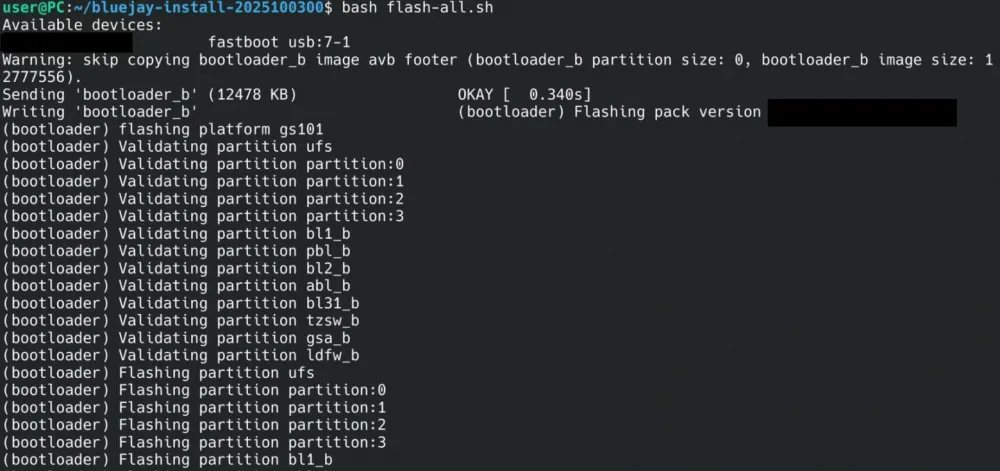
5. Run the installation script and wait for it to complete
bash flash-all.sh
6. Lock the bootloader of the Google Pixel
fastboot flashing lock
The command will require confirmation on the actual Google Pixel. You need to select the option Lock the bootloader using the volume buttons and confirm with the Power button.

7. Boot into GrapheneOS and check the integrity of the OS
Press the Power button to select the Start option, thus initiating the first boot of GrapheneOS.
Every time you turn on the Google Pixel, the device will display a screen with the message Your device is loading a different operating system and an ID that allows you to check the integrity of the OS. The ID must match the one specified on the official website for the specific model:
Pixel 10 Pro Fold: 55a2d44103e56d5ec65496399c417987ba77730e6488fc60ba058d09fc3caee3
Pixel 10 Pro XL: 141d7fc32af7958a416f2661b37cf6f27bfb376fb5ce616aeaa27a82c7a04f74
Pixel 10 Pro: 4e8ee8f717754052198ca6d2d3aaa232e2461b4293c0d6f297e519cc778de093
Pixel 10: 3f7415ea26f5df5b14ea6d153256071a7a1af9ce7b0970b7311cc463c7ea02c7
Pixel 9a: 0508de44ee00bfb49ece32c418af1896391abde0f05b64f41bc9a2dfb589445b
Pixel 9 Pro Fold: af4d2c6e62be0fec54f0271b9776ff061dd8392d9f51cf6ab1551d346679e24c
Pixel 9 Pro XL: 55d3c2323db91bb91f20d38d015e85112d038f6b6b5738fe352c1a80dba57023
Pixel 9 Pro: f729cab861da1b83fdfab402fc9480758f2ae78ee0b61c1f2137dd1ab7076e86
Pixel 9: 9e6a8f3e0d761a780179f93acd5721ba1ab7c8c537c7761073c0a754b0e932de
Pixel 8a: 096b8bd6d44527a24ac1564b308839f67e78202185cbff9cfdcb10e63250bc5e
Pixel 8 Pro: 896db2d09d84e1d6bb747002b8a114950b946e5825772a9d48ba7eb01d118c1c
Pixel 8: cd7479653aa88208f9f03034810ef9b7b0af8a9d41e2000e458ac403a2acb233
Pixel Fold: ee0c9dfef6f55a878538b0dbf7e78e3bc3f1a13c8c44839b095fe26dd5fe2842
Pixel Tablet: 94df136e6c6aa08dc26580af46f36419b5f9baf46039db076f5295b91aaff230
Pixel 7a: 508d75dea10c5cbc3e7632260fc0b59f6055a8a49dd84e693b6d8899edbb01e4
Pixel 7 Pro: bc1c0dd95664604382bb888412026422742eb333071ea0b2d19036217d49182f
Pixel 7: 3efe5392be3ac38afb894d13de639e521675e62571a8a9b3ef9fc8c44fd17fa1
Pixel 6a: 08c860350a9600692d10c8512f7b8e80707757468e8fbfeea2a870c0a83d6031
Pixel 6 Pro: 439b76524d94c40652ce1bf0d8243773c634d2f99ba3160d8d02aa5e29ff925c
Pixel 6: f0a890375d1405e62ebfd87e8d3f475f948ef031bbf9ddd516d5f600a23677e8
If the ID values differ, the PC may be infected, and the attacker has replaced the release file with malware. It is necessary to reinstall from another PC.
After checking the integrity, you can proceed with the initial setup of GrapheneOS, after which you will be prompted to disable OEM Unlocking.
If necessary, you can return to the stock OS. The installation process is described here.










Write comment